
Questions & Answers
Before asking, please do a search to see if the samequestion has already been asked and answered.

there needs to be a way to import images that aren't reference frames

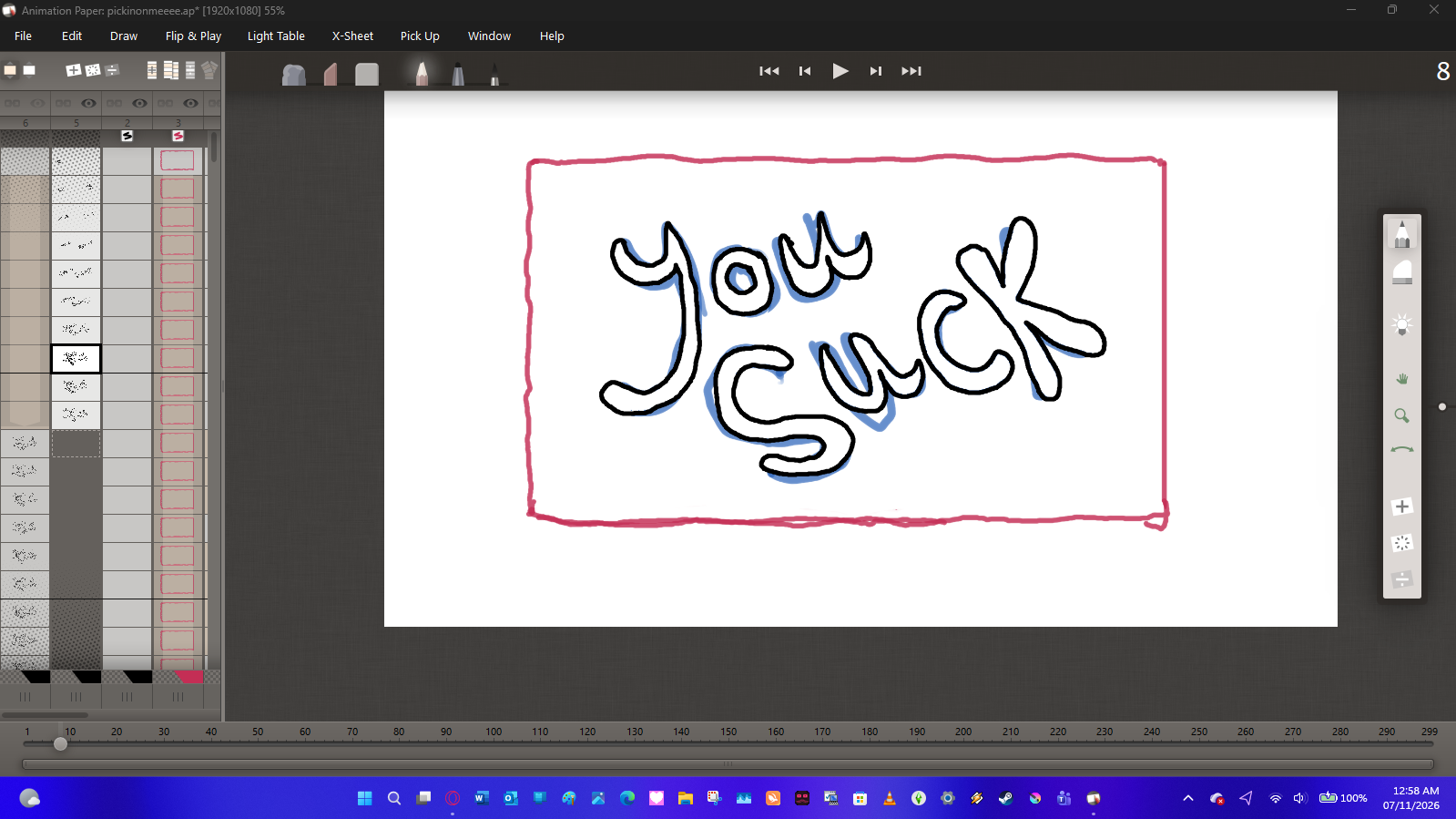
Quote from florian on November 7, 2026, 1:34 ami have recently created an animation using this software, and to colour said animation i have exported the frames and used Microsoft paint to colour them in. i cannot import those coloured frames back in to the project without them showing up as reference frames and being non copyable and essentially null in the project. i LOVE this software as it is so beginner friendly, with professional features, and i would hate to have to use another piece of software to assemble my coloured frames when this software could easily do the job. if there is a way to do this then somebody please notify me. thank you. i also understand why we arent able to draw on reference frames and transform them yet, but the distinction between a refrence frame and an imported image needs to be made because they are intended to behave differently. for example, when i attempt to import my frames, if i dont do it all in one batch at the moment then the two batches will be on two different layers, and for some reason the second will put a white stripe through the middle of all previous frames (which is unchangeable as it is on the first frame which is a clone all the way down until you reach the second batch of frames) (pictured below, one image is with the second batch added hidden, the other image with the second batch added visible.) P.S. the 'you suck' on the screen is a part of the animation and not an insult haha lol
i have recently created an animation using this software, and to colour said animation i have exported the frames and used Microsoft paint to colour them in. i cannot import those coloured frames back in to the project without them showing up as reference frames and being non copyable and essentially null in the project. i LOVE this software as it is so beginner friendly, with professional features, and i would hate to have to use another piece of software to assemble my coloured frames when this software could easily do the job. if there is a way to do this then somebody please notify me. thank you. i also understand why we arent able to draw on reference frames and transform them yet, but the distinction between a refrence frame and an imported image needs to be made because they are intended to behave differently. for example, when i attempt to import my frames, if i dont do it all in one batch at the moment then the two batches will be on two different layers, and for some reason the second will put a white stripe through the middle of all previous frames (which is unchangeable as it is on the first frame which is a clone all the way down until you reach the second batch of frames) (pictured below, one image is with the second batch added hidden, the other image with the second batch added visible.) P.S. the 'you suck' on the screen is a part of the animation and not an insult haha lol
Uploaded files: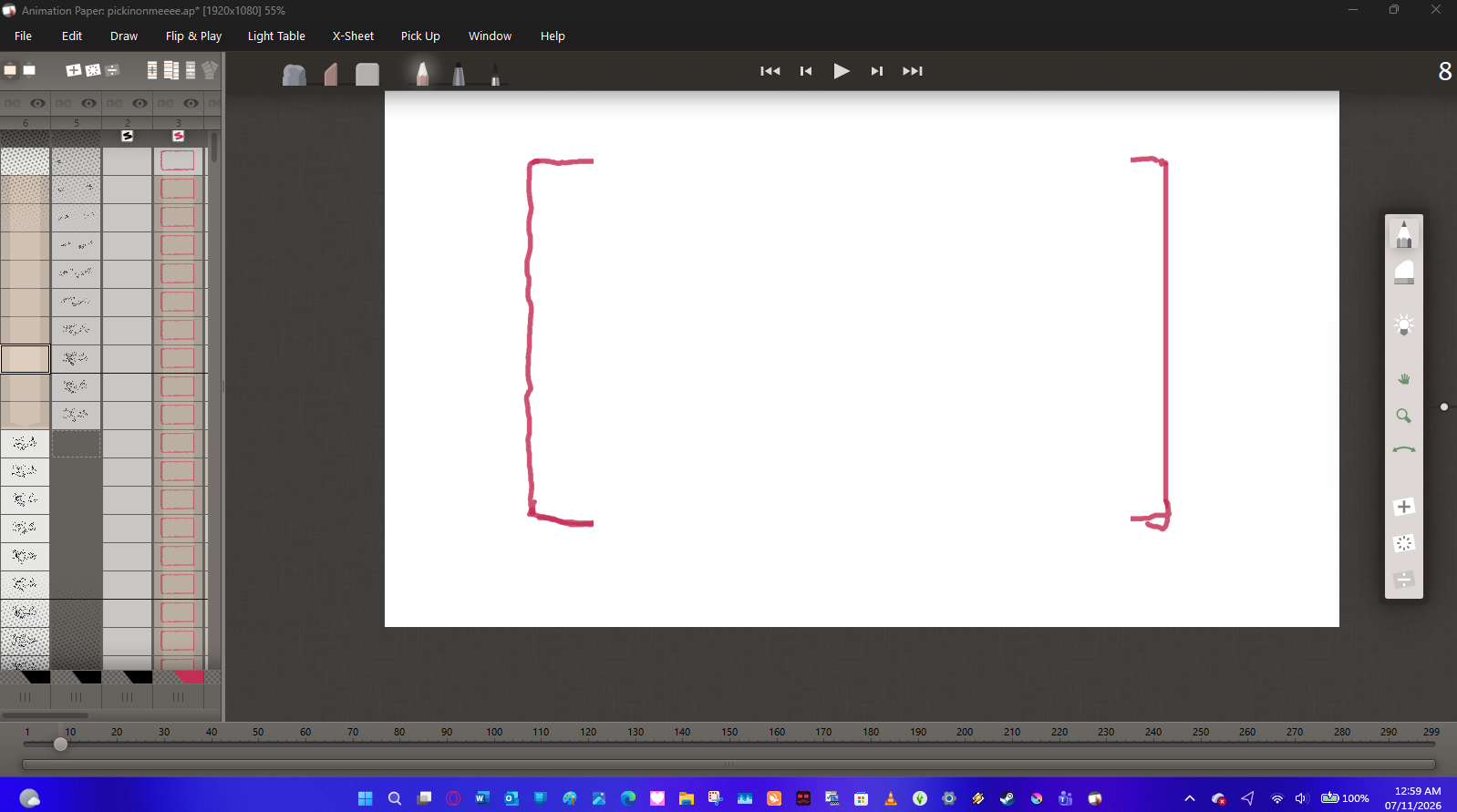

Quote from Niels on November 8, 2026, 11:38 amHi Florian,
Sorry for my slow answer. I have been away for a couple of days - which was really bad timing on my part - thinking of your post here. 🙂
Yes, any imported frames will turn up as a reference layer. The most important reason for that is that the normal (drawn) layers in AP contains a lot of information (under the hood) which make them perfectly scaleable etc - information that is lost when you export for coloring and then import again. But that shouldn't be a problem though. If all you want is to be able to assemble your colored animation for final exporting as a movie-file (like an mp4), then you should easily be able to do that. Maybe I don't see what the problem is?
First of all, as you say, it is best to import your whole scene as one reference layer. Why you would have to split it up, I don't understand. AP will automatically respect the numbering of your frames, so clones (aka held drawings) will keep their timing also after importing back in.
I'm not sure what you mean by a white stribe through the middle of your frames? Only thing I can think of when looking at your screenshots is that the thumbnails of your clones you have in the beginning of your layer "6" contains a wide light brown "arrow symbol". Is that what you mean? That is just part of the interface telling you that those drawings are "clones". You must have seen them before? You have the same in your layer "3" that contains your red rectangle.
Anyway, maybe the problem here is that the imported frames that shows in the two reference layers are not transparent in the same way as normal layers are. I mean, normally it is only the lines of a layer that goes on top of lower layers. With reference layers (unless they contain an alpha channel) they will cover everything on lower layers (including the white paper part).
In your example, I would just reorder the layers, so "6" goes at the bottom (right-most), then "5" and then your two normal layers on top (left).
If you are not aware how you reorder layers, just use the drag-buttons below each column in the x-sheet. You just drag left or right to reorder the column/layer.
I hope this makes sense. Maybe I misunderstood you, so please get back to me and let me know. I'm here to help!
Best,
Niels
Hi Florian,
Sorry for my slow answer. I have been away for a couple of days - which was really bad timing on my part - thinking of your post here. 🙂
Yes, any imported frames will turn up as a reference layer. The most important reason for that is that the normal (drawn) layers in AP contains a lot of information (under the hood) which make them perfectly scaleable etc - information that is lost when you export for coloring and then import again. But that shouldn't be a problem though. If all you want is to be able to assemble your colored animation for final exporting as a movie-file (like an mp4), then you should easily be able to do that. Maybe I don't see what the problem is?
First of all, as you say, it is best to import your whole scene as one reference layer. Why you would have to split it up, I don't understand. AP will automatically respect the numbering of your frames, so clones (aka held drawings) will keep their timing also after importing back in.
I'm not sure what you mean by a white stribe through the middle of your frames? Only thing I can think of when looking at your screenshots is that the thumbnails of your clones you have in the beginning of your layer "6" contains a wide light brown "arrow symbol". Is that what you mean? That is just part of the interface telling you that those drawings are "clones". You must have seen them before? You have the same in your layer "3" that contains your red rectangle.
Anyway, maybe the problem here is that the imported frames that shows in the two reference layers are not transparent in the same way as normal layers are. I mean, normally it is only the lines of a layer that goes on top of lower layers. With reference layers (unless they contain an alpha channel) they will cover everything on lower layers (including the white paper part).
In your example, I would just reorder the layers, so "6" goes at the bottom (right-most), then "5" and then your two normal layers on top (left).
If you are not aware how you reorder layers, just use the drag-buttons below each column in the x-sheet. You just drag left or right to reorder the column/layer.
I hope this makes sense. Maybe I misunderstood you, so please get back to me and let me know. I'm here to help!
Best,
Niels